You haven't signed in yet, you can have a better experience after signing in
*Please complete the payment within {{receiveCouponInfo.expire_at}}Previous use*
You haven't signed in yet, you can have a better experience after signing in





Activity Rules
1、Activity time:{{ info.groupon.start_at }} ~ {{ info.groupon.end_at }}。
1、Activity time:cease when sold out。
2、Validity period of the Group Buying:{{ info.groupon.expire_days * 24 }} hours。
3、Number of Group Buying:{{ info.groupon.need_count }}x。
Please Pay Attention
1、Teamwork process: Join/initiate a Group Buying and make a successful payment - Within the validity period, the number of team members meets the activity requirements - Group Buying succeeded!
2、If the number of participants cannot be met within the valid period, the group will fail, and the paid amount will be refunded in the original way.
3、The number of people required and the time of the event may vary among different products. Please pay attention to the rules of the event.
VidHub - Video Player, use VidHub to organize and play your videos.
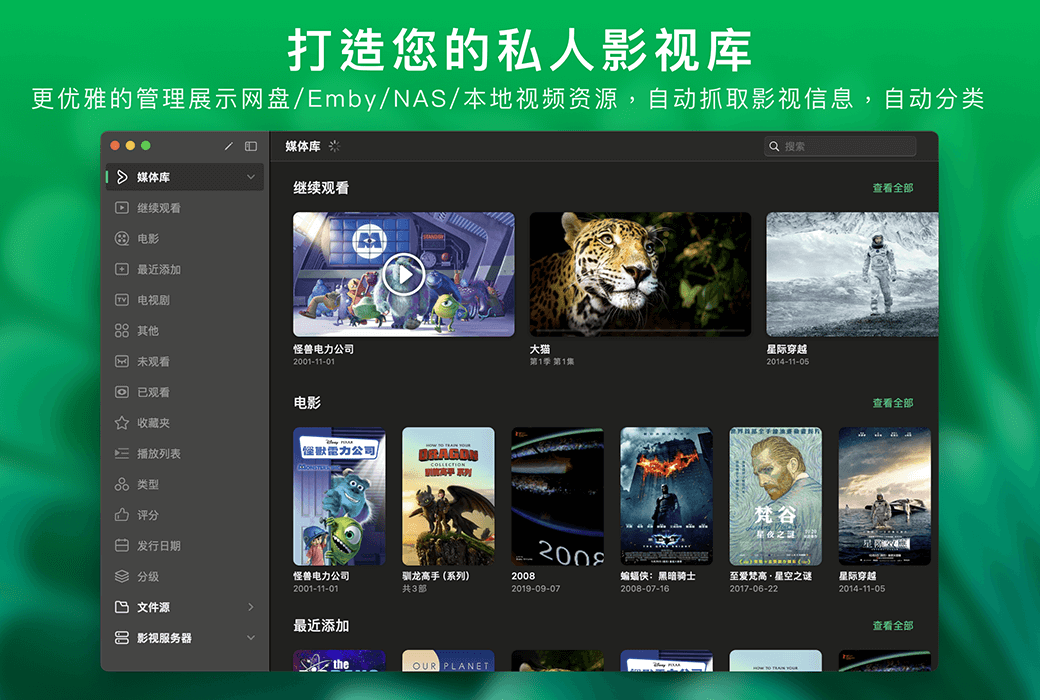
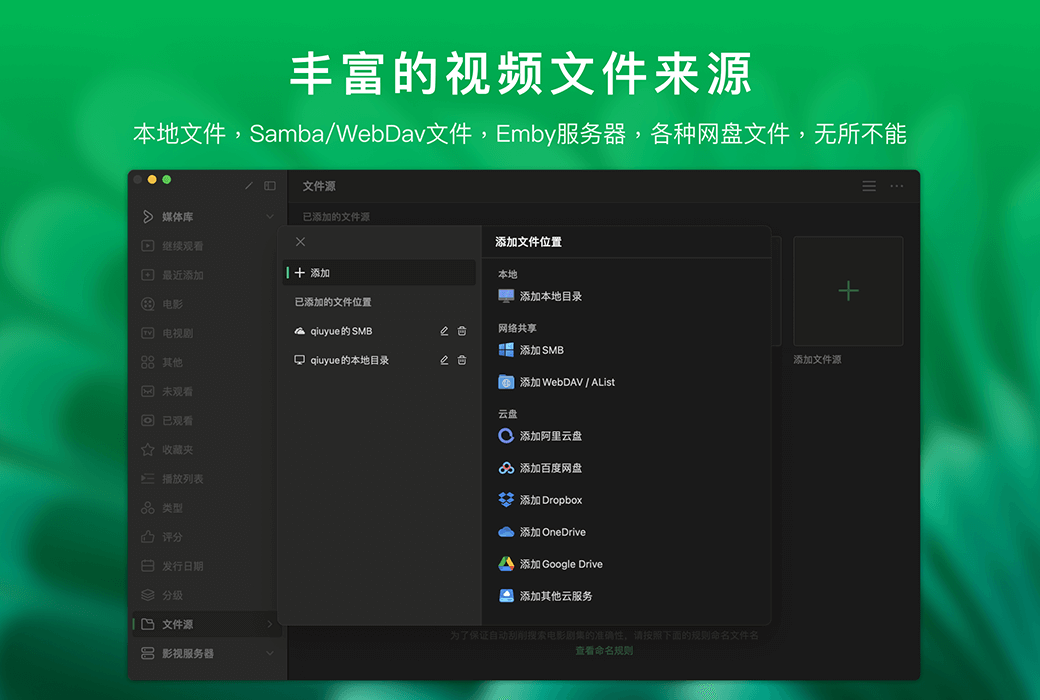
VidHub is a video player suitable for all Apple/Android platforms. It supports adding video files from local, Samba (smb)/WebDAV, NAS, Google Drive/Dropbox/OneDrive. It can capture information about movies and TV shows, and supports almost all video formats. In addition, it also supports adjusting playback speed, adding subtitles, taking screenshots, HDR, and other functions.
VidHub Features
Elegant management and display of local video resources, automatic capture of online information and automatic sorting.
Including local video files, Samba/WebDAV video files, and video files from different cloud storage services
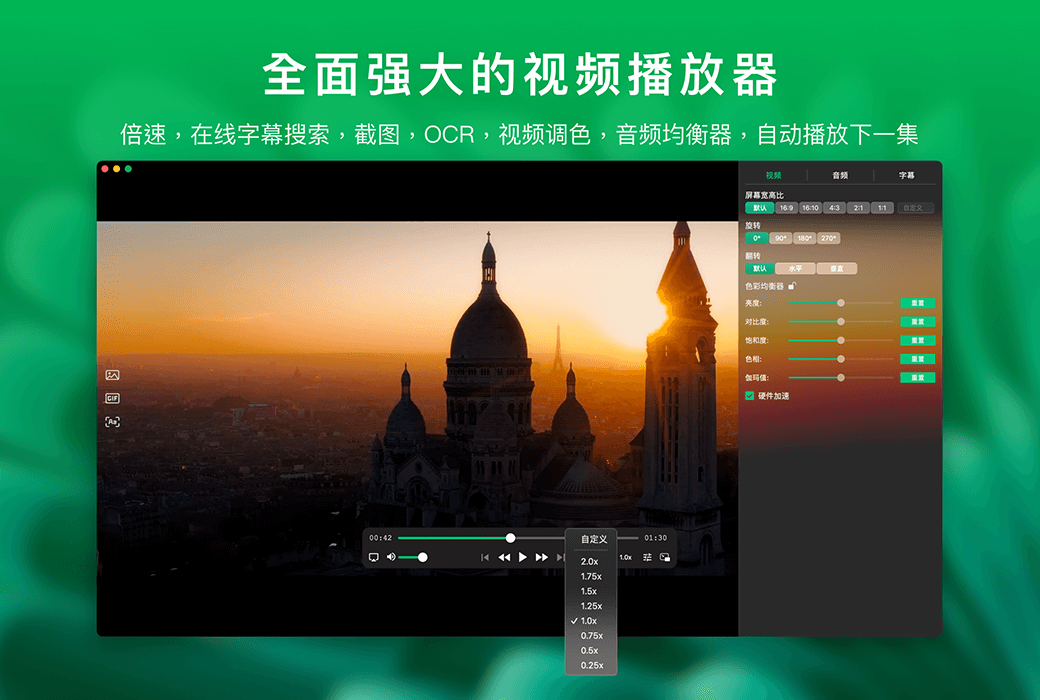
Support playback speed adjustment, online subtitle search, screen capture, OCR recognition, video color correction, audio equalizer, and automatic playback of the next episode.
The global search function based on file names, movie and TV series titles allows you to quickly find the content you want to watch anytime, anywhere.
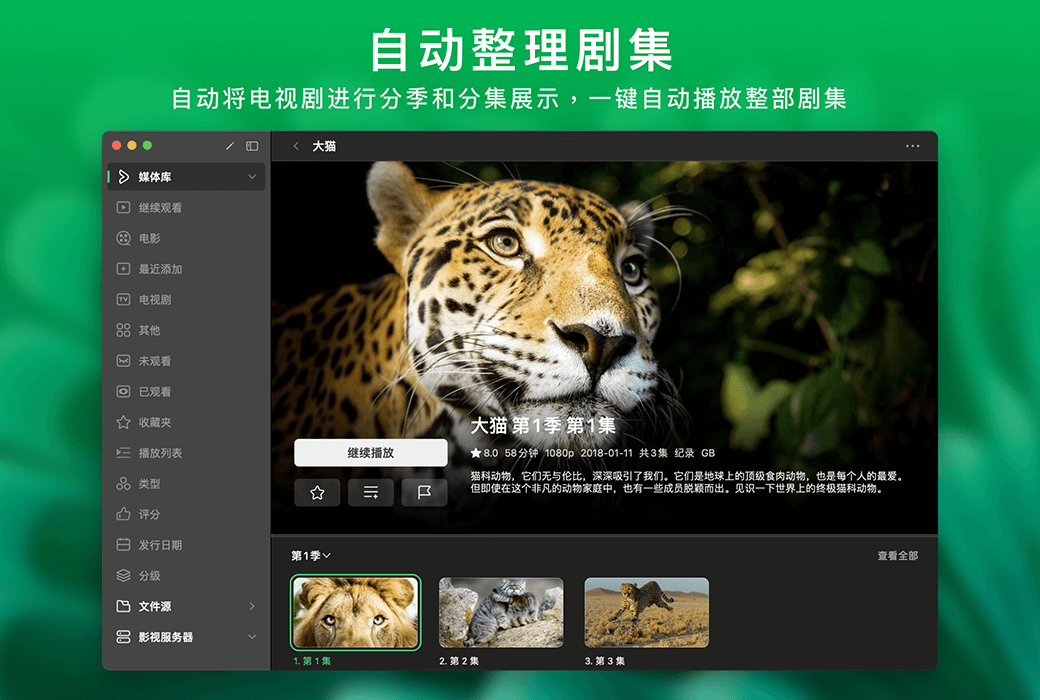
Automatically organize TV drama files by season and episode count, and play the entire season with just one click.
Automatically synchronize media center, playback progress, playlists, bookmarks, and other information between different devices.
Official website:https://okaapps.com/product/1659622164
Download Center:https://vidhub.apsgo.cn
Delivery time:24-hour automatic shipping
Operating Platform:macOS、iOS、Android
Interface language:Supports Chinese interface display and multiple language options.
Update Description:Use and update during the subscription period.
Trial before purchase:Free trial is available before purchase.
How to receive goods:After purchase, the activation information will be sent to the email address at the time of placing the order, and the corresponding product activation code can be viewed in the personal center, My Orders.
Number of devices:Can install 10 devices.
Replace computer:After exceeding the activation quantity, the previously activated devices will be squeezed out of authorization.
Activation guidance:https://vidhub.apsgo.com/forum/5291
Special note:To be added.
reference material:https://okaapps.com/product/1659622164

Any question

Want to mount quarks and 115, but don't know how to build AList? You can take a look at this software 'AListServer'.
AListServer is a launcher based on AList, which is a paid software that can be downloaded from the app store.
Can support multiple storage services, such as Alibaba Cloud OneDrive、 Tianyi Cloud Drive, 115 Cloud Drive, Quark Cloud Drive PikPak、 Thunder Cloud Drive, China Mobile Cloud Drive, China Unicom Cloud Drive, Sichuan Telecom Magic Drive, 123 Cloud Drive, Tencent Weiyun, Lanzuo Cloud, Xiaofeijian Cloud Drive, Baidu Cloud Drive, Google Cloud Drive, Cookie Cloud Drive, UC, and more.
How to use AListServer software?
After downloading from the app store, select the homepage and check the service status. The account information here provides the username and password of the login Alist.
Then click on Manage - Add, the specific operation here depends on the different cloud drives you mount. For details, please refer to this link:
https://zh.okaapps.com/blog/655b22c5948009206c562fac
For example, how to mount a 115 cloud drive? Let's proceed step by step! Each option is arranged clearly and explicitly
Step 1: Open the Alist homepage and run the service status
Step 2: Add management, log in to Alist, and enter the account password in the account information section on the homepage. Usually, the default account password is admin
Step 3: Click on "Add", select the 115 cloud drive as the driver, mount path:/115, serial number 0, leave no comments, cache expiration time: 30, web proxy: not selected, webdav strategy: local proxy, download proxy URL: not selected, extract folder: not selected, cookie: open the web version of 115 cloud drive, press FN+F12, refresh the page, there is a "?" on the left? Click on the file starting with 'cid', find the cookie, copy this code, and paste it into the cookie under 'list'. QR code token: not filled in, Qrcode source: not filled in, page size: 56, speed limit: 2, root folder: Open the official website of 115 Netdisk, click on the number after cid in the URL when entering the folder to be set.
ashttps://115.com/?cid=249163533602609229& ;offset=0& tab=& The root folder ID of the 'mode=ziyuan' folder is 249163533602609229, then click save
Step 4: After Alist successfully mounts the cloud drive, open vidhub, select add file source, and choose webdav.
At this point, select the server address from the webdav information at the bottom of the AListServer homepage. If it is a local area network, fill in the number starting with 192. Then fill in the port number:5244The username and password are the account information above, which is the username and password for logging into AList. The default username and password areadmi. Path filling/dav
At this point, click Add, select the file you want to mount, and then click Finish.
Some common questions about AListServer software
After the application is killed, it will automatically start the service when you reopen it. That is to say, AListServer supports automatic operation, but please note that the service will not start automatically when switching from the backend to the frontend.
Go to App - Settings - Run in the background, turn on the switch to start
This is because the activation has failed. In extreme scenarios, the system will still kill the service process and enter the app to restart the service
Due to differences in equipment and usage scenarios, it is recommended to manually turn off the service when it is not in use.
Because AList has cache, simply click the refresh button in the bottom right corner of the browsing page (tvOS access management page) by clicking on "Home" in the back sidebar
The ability of the built-in player is weak, it is recommended to use third-party players uniformly
Due to being restricted/killed by the system's backend scheduling policy, the lean mode is usually activated; It can be restored after power failure and restart. If power failure and restart cannot solve the problem, you can only give up using it and switch to using the iOS version, which has a more stable iOS background
Source text from:https://zh.okaapps.com/blog/671a24fb4a8410481012315e